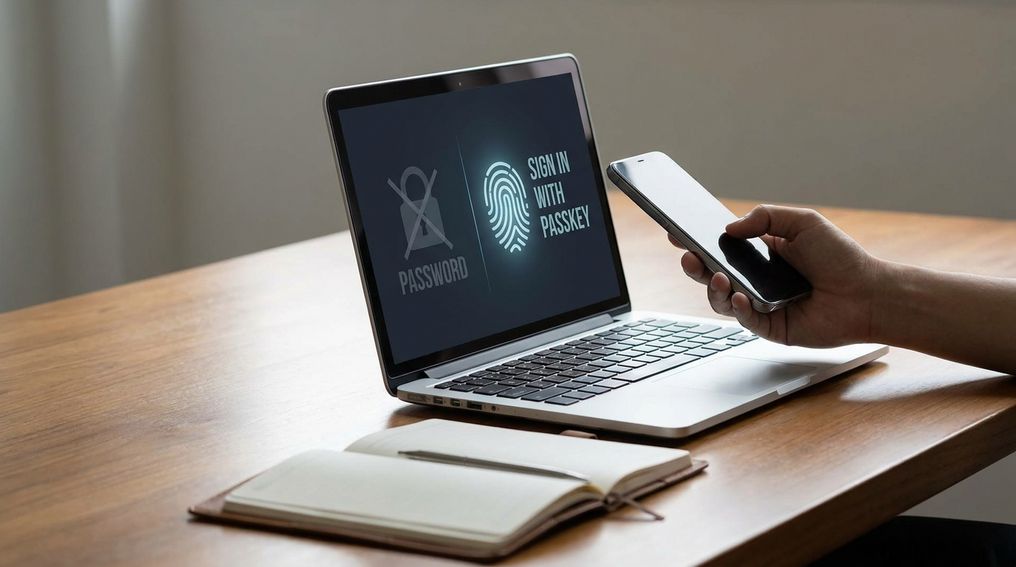
Passkeys vs passwords comes down to one major shift: passkeys replace a reusable secret you type with a cryptographic credential your device proves without exposing it. The password era is ending in direction, not overnight.
If you’re tired of reset links, breach alerts, phishing emails, and reused logins, passkeys give you a safer way to sign in without memorizing anything. This article explains how passkeys work, where they beat passwords, where they still create friction, and how you can start using them without locking yourself out.
What Is The Difference Between Passkeys Vs Passwords?
Passwords rely on something you know. Passkeys rely on something your device securely holds and unlocks only after you approve the sign-in.
A password is a shared secret. You create it, the website verifies it, and the service needs some form of stored password data to recognize you later. That creates familiar problems: people reuse passwords, attackers phish them, leaked password databases get abused, and weak passwords can be guessed or cracked. You can strengthen passwords with password managers and multi-factor authentication, but the basic model still depends on a secret that can be typed, copied, stolen, or reused.
A passkey uses public key cryptography instead. When you create one, your device generates a key pair. The public key goes to the website or app, and the private key stays on your device or in an encrypted credential manager. During sign-in, the site asks your device to prove it has the private key, and you approve that request with Face ID, Touch ID, Windows Hello, a device passcode, a Personal Identification Number (PIN), or a security key.
That difference changes the risk profile. With a password, the login secret can leave your head, your keyboard, your browser, or a breached service. With a passkey, the private key is not typed into a page and is not sent to the server. The service stores a public key that is not useful for signing in by itself.
Why Are Passwords Still Such A Security Problem?
Passwords remain a problem because they ask people to do work that people are bad at doing consistently. You’re expected to create unique, long, random secrets for every account and never fall for fake login pages.
That model breaks under daily use. You may have hundreds of accounts across banks, stores, work tools, streaming services, email, cloud storage, and social platforms. If you create memorable passwords, they’re often weaker than they should be. If you create strong passwords without a manager, you can’t remember them. If you reuse one strong password, one breach can put several accounts at risk.
Phishing makes the problem worse. A fake login page can look close enough to the real one that many people won’t spot the difference under pressure. Attackers don’t need to break encryption when they can trick you into handing over the password yourself. Multi-factor authentication (MFA) helps, but some MFA methods can still be tricked, intercepted, or approved by mistake.
Security teams have known for years that credential theft, phishing, and weak or reused passwords are common paths into accounts and systems. That’s why the move toward phishing-resistant authentication matters. Passkeys target the weakness at the center of the password model: the reusable shared secret.
How Do Passkeys Work?
Passkeys work by pairing a public key stored by the website with a private key controlled by your device or credential manager. You confirm the sign-in locally, and the private key proves your identity without being revealed.
The technical base is Fast Identity Online 2 (FIDO2) and Web Authentication (WebAuthn). WebAuthn is the browser standard from the World Wide Web Consortium (W3C) that lets websites use public key credentials for sign-in. FIDO2 builds on that model for passwordless and phishing-resistant authentication. You don’t need to manage those standards yourself, but they explain why passkeys can work across browsers, operating systems, and apps that support them.
When you create a passkey, the website or app registers a public key to your account. Your private key stays protected by your device, hardware security key, or synced credential store. At sign-in, the site sends a challenge, your device signs it with the private key, and the site checks that signature using the public key. No password travels across the network.
The local approval step is what you see. On an iPhone or Mac, that may be Face ID, Touch ID, or the device passcode through iCloud Keychain. On Android or Chrome, it may use Google Password Manager. On Windows, it may use Windows Hello. A hardware security key can also hold passkeys for people or organizations that prefer a physical authenticator.
Are Passkeys Safer Than Passwords?
Yes, passkeys are safer than passwords for the most common login attacks. They reduce phishing, remove password reuse, and avoid storing a reusable login secret on the server.
The biggest gain is phishing resistance. A passkey is bound to the legitimate website or app where it was created. If an attacker sends you to a lookalike site, your passkey won’t work for that fake destination. That is different from a password, which can be typed into any box that looks convincing.
Passkeys also reduce the damage caused by server-side credential leaks. If a website stores password hashes and attackers steal that database, those hashes can become useful targets. If a website stores your public key for passkey sign-in, that public key cannot be used alone to access your account. The private key remains under your control.
That doesn’t make passkeys magical. Your device account, recovery options, and screen unlock method still matter. A weak device passcode, poor recovery setup, or compromised cloud account can create risk. Passkeys remove many password problems, but you still need clean account recovery, updated devices, and careful control over who can unlock your hardware.
What Happens If You Lose A Device With Passkeys?
If you lose a device with passkeys, recovery depends on how those passkeys were stored. Synced passkeys can often be restored through your platform account, and device-bound passkeys may require a backup device, recovery method, or hardware security key.
This is the concern that makes many people hesitate. With a password, you expect a reset link. With a passkey, access may depend on iCloud Keychain, Google Password Manager, Windows Hello, a password manager, or a hardware security key. If your passkeys sync across devices, losing one phone usually isn’t the end of the story. You can sign in from another trusted device or restore access through the account tied to the sync service.
Device-bound passkeys work differently. They stay on one device or one physical security key and do not sync. That can be good for sensitive accounts because the credential is harder to move, but it also means you need a backup plan. A spare security key, a second registered device, or account recovery codes can prevent a lockout.
Before you remove a password from any important account, check the recovery settings. Make sure your email account is secure, your phone number is current if the service uses it, and you have more than one way back in. The safest passkey setup is not just passwordless; it is recoverable.
Do Passkeys Work Across Apple, Google, Microsoft, And Other Platforms?
Passkeys work across the major platform ecosystems, but the experience is not identical everywhere. Apple, Google, and Microsoft support passkeys, yet portability and recovery can still feel different from one device family to another.
Apple supports passkeys through iCloud Keychain and protects them with Face ID, Touch ID, or the device passcode. Google supports passkeys through Google Password Manager across Android, ChromeOS, and Chrome. Microsoft supports passkeys through Windows 11, Microsoft accounts, Windows Hello, and Microsoft Edge. That means passkeys are no longer a niche feature for security specialists.
Many major services have added passkey support, including Google, Microsoft, Apple, Amazon, PayPal, eBay, GitHub, and Nintendo. Support still varies by account type, region, device, browser, and app version. Some services let you use passkeys as the main sign-in method. Others keep passwords as a fallback or require you to keep a password for recovery.
Cross-platform friction has not disappeared. If you live entirely inside one ecosystem, synced passkeys can feel smooth. If you switch between iPhone, Windows, Android, Chrome, Safari, work-managed devices, and third-party password managers, you may need to make deliberate choices about where each passkey lives. Passwords feel universal because they’re old; passkeys are becoming broader, but they still depend on modern software support.
Are Passkeys Better Than Two-Factor Authentication?
Passkeys can be better than many two-factor authentication methods because they are phishing-resistant by design. They can also replace the password-plus-code routine for services that support true passwordless sign-in.
Traditional MFA often starts with a password and adds another step. That second step may be an authenticator app, a push prompt, an email code, or a security key. Some of those options are stronger than others. A security key using FIDO standards offers strong phishing resistance, but one-time codes and push prompts can still be targeted by fake login flows or user fatigue.
A passkey changes the login structure. You don’t type a password, then prove yourself again. You approve a cryptographic sign-in with a device or authenticator that checks the website identity before responding. That makes passkeys cleaner for the user and harder for attackers to trick.
You may still see MFA alongside passkeys for sensitive accounts, work systems, or unusual sign-in attempts. That is normal. Passkeys reduce the need for weaker second factors, but organizations may still add extra checks based on device health, location, account risk, or administrative policy. For personal use, a passkey plus strong recovery settings is often a cleaner upgrade from passwords and text-message codes.
Will Passkeys Fully Replace Passwords?
Passkeys will replace passwords for many daily sign-ins, but passwords are not disappearing at once. Legacy systems, account recovery needs, older devices, shared accounts, and inconsistent website support will keep passwords around for years.
The best way to read passkeys vs passwords is as a migration, not a sudden switch. The industry now has a credible replacement for routine password sign-ins. Major operating systems support it, browser standards exist, and large consumer services are adopting it. That combination gives passkeys staying power.
The remaining friction is practical. Many older websites still require passwords. Some enterprise applications were built long before WebAuthn was common. Shared household or team accounts don’t always map neatly to passkeys because passkeys are designed for individual identity. Recovery can also confuse people who expect every login problem to end with a simple reset link.
Passwords will likely shrink into fallback, recovery, and legacy roles before they vanish from daily use. That is still a meaningful end to the password era. If your most important accounts move to passkeys, you reduce exposure to phishing and reused credentials right where it matters most.
How Should You Start Using Passkeys Without Losing Access?
Start with high-value accounts that already support passkeys, then add backup access before removing or ignoring your password. Your goal is safer sign-in without creating a single point of failure.
Begin with your email account, password manager, primary cloud account, financial accounts where available, developer accounts, and shopping accounts that store payment information. Add a passkey from a device you use daily. Then register a second trusted device if the service allows it. If you use a hardware security key, register a backup key and keep it somewhere safe.
Review account recovery before you depend on passkeys. Check your recovery email, recovery phone, backup codes, and trusted devices. Make sure the account that syncs your passkeys has a strong unlock method and up-to-date recovery options. Your passkey setup is only as dependable as the recovery path behind it.
Keep a password manager for now. You’ll still need passwords for unsupported sites, old accounts, work systems, and services that keep passwords as a fallback. A good transition plan uses passkeys where they’re available and unique stored passwords where they aren’t. That balance gives you better security today without betting everything on support that is not universal yet.
Are Passkeys Safer Than Passwords? Quick Answer
- Private keys stay on your device.
- Passkeys are tied to the real site.
- No reusable secret is sent.
- Passwords can be guessed, reused, phished, or leaked.
The Real End Of The Password Era
The password era is ending because passkeys solve the problem passwords never could: safe sign-in without a reusable secret that you type, remember, and expose. You should still expect passwords to linger across older services, recovery flows, and workplaces with legacy systems. The practical move is to enable passkeys on important accounts, keep recovery options current, and store remaining passwords in a password manager. If you treat passkeys as a phased upgrade rather than a magic replacement, you’ll get the security gain without the lockout risk. The future of sign-in is less typing, fewer phishing traps, and more proof handled securely by the devices you already use.
References
- FIDO Alliance — Passkeys
- National Institute of Standards and Technology — Digital Identity Guidelines: Authentication And Authenticator Management
- World Wide Web Consortium — Web Authentication Specification
- Apple Support — About Passkeys
- Google Account Help — Sign In With Passkeys
- Microsoft Learn — Passkeys Overview
- Verizon — Data Breach Investigations Report
- Yubico — Phishing-Resistant Multi-Factor Authentication
- 1Password — Passkeys Directory And FAQ.
Leave a Reply